Break Into the World of Programming Using Python

Technical writing.
Have you ever wondered how it is possible to create the applications you see in electronic devices everywhere? Your phones, desktops, televisions, and even the big screens in public spaces used for advertisements. You may have heard of computer programming and have an idea that the software bringing this hardware to life is being coded, but have you ever thought about how you could create something like that?
This article is going to guide you on how to set up the tools you need to write your first line of code, a crucial step you will take to start building your first application.
We are going to use a programming language called Python—not the snake, but a powerful technological tool that has been used to automate many tasks. In case you are wondering what a programming language is, it's similar to a language used for communication, but for computers. Computers don’t understand the language humans use in communicating, they process information in binary(0s and 1s) so the programming language acts as a mediator between humans and computers, translating human-readable instructions, using a compiler or an interpreter to machine-readable code.
We are using Python because it is popular among beginners due to its simplicity and large community. Moreover, Python is very versatile, and it is used in various fields, including machine learning to train artificial intelligence models, Data Science, Game development, and Web Development. Being an expert in Python is one of the ways you can gain superpowers and I’m going to walk you through the first few steps to being a Pythonista!
DOWNLOAD AND INSTALL PYTHON:
The first thing you need to do is install the programming language you are going to use on your device. Go to the Python website, then click on the download tab. A dropdown will appear with links to download Python for the different operating systems.

Click on your operating system and download the latest version of Python which is Python 3.13.0 released on October 7th, 2024.
For easy navigation, here are links to download Python for the different operating systems:
Make sure to scroll down and download the 64-bit version of Python, unless you're using a 32-bit operating system. Python comes in two versions: one for 32-bit systems and one for 64-bit systems. Most people today have 64-bit computers, so it’s usually best to download the 64-bit version of Python. However, if you have an older computer that only supports 32-bit, you’ll need to download the 32-bit version of Python.
To find out if your computer is 64-bit or 32-bit, check out these articles for your operating system:

Before you go ahead to install, click on “Add python.exe to path.” When you install Python, you need to tell your computer where to find it. Adding python.exe to the PATH is like giving your computer a shortcut to Python, so it knows where to look when you type Python in the command prompt or terminal. It’s like getting directions from your friend. Imagine you're going to visit a friend, but you don't know exactly where their house is. They send you their location on Google Maps through WhatsApp. Now, you can just open Google Maps and follow the directions to their house without worrying about getting lost.


Installing

Successfully installed
VERIFYING THE VERSION:
After installation, you will have to verify the Python version to be sure that you have the latest Python version installed on your system. To do this, open the terminal on your device.
For Windows, type cmd and open the command prompt.
For MacOS, click the Launchpad icon in the Dock, type "Terminal" in the search field, and click the Terminal app.
On Linux, Press Ctrl + Alt + T to open a new terminal window. This method can vary depending on the distribution.
Type python --version on the terminal and hit the enter key to confirm the version. Our latest version is Python 3.13.0

You can close your terminal after this. Open the Python IDLE (Integrated Development and Learning Environment). It is a simple, user-friendly interface for writing and running Python code. It will be available after you have installed Python on your computer.
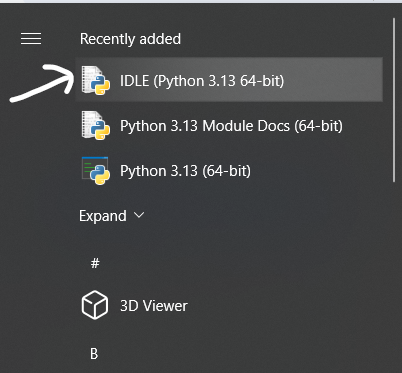
WRITING YOUR FIRST PYTHON CODE:
Now, let's get to the most exciting part: writing your first line of code! After you've opened the Python IDLE, you will have an interface like this:

We are going to write a simple code that prints “Hello World” to the screen first. To do this, type print(“Hello World”) and press enter on your keyboard.

Congratulations! You have just written your first line of code using Python.
Python can also perform calculations for us, and we are going to make a few calculations with it.
Type a = 2
b = 3
print(a + b)

To understand how this works. Think of a basket that contains some bottle covers. You pick three cups from a shelf and place them on a table. You add 2 bottle covers to one of the cups, and 3 bottle covers to the second cup, then pour the contents from the cups into the third cup and count them. You realize there are five bottle covers in the third cup
a and b act like containers. They are called variables in Python and are used to store things. In our code, there isn’t a third container to store our calculations, so we just got the total of what we calculated and left it that way.
SAVING OUR CODE INTO A FILE:
We will need to save the codes we just wrote into a file. Click on file, then Save as

A pop-up will appear. Type the file name scripts.py and click on save, .py is a file extension that tells the computer the file is a Python file. Just like a PowerPoint presentation ends with .pptx when saved to the computer.

After saving our scripts, we can always go back to edit them or even run them on the terminal using python scripts.py
WHAT’S NEXT?
Now that you know you can create the applications you see on your devices and achieve this using Python, it's time to explore and learn more about automating tasks with this powerful programming language. For additional resources, you can broaden your knowledge by checking out this Python tutorial. Keep learning, and practice by writing more scripts!